CentOS 6 Netinstall Guide – Network Installation Screenshots
 This step-by-step walkthrough with screenshots, howto install CentOS (The Community ENTerprise Operating System) 6.0 Linux with Network installation (NetInstall).
CentOS 6 is finally released and it brings all RHEL 6 goodnes to all users. When CentOS 6.1 is released you get all security updates via yum. Have fun!
Want just CentOS 6 Netinstall mirror URL?
CentOS 6 Netinstall mirror URL
1. Download CentOS 6 Net Install (NetInstall) image
Select mirror here:CentOS 6 i386 version
CentOS 6 x86_64 version
Select ISO image
CentOS-6.0-i386-netinstall.iso
CentOS-6.0-x86_64-netinstall.iso
2. Burn CentOS 6 Image to CD and Boot Computer
Check CentOS image MD5 sum and burn image to CD with your favourite CD burner. And boot computer using CentOS Installation CD.3. CentOS 6 installation
3.1 CentOS 6 Grub menu -> select install or upgrade existing system

3.2 Booting CentOS 6 Installer
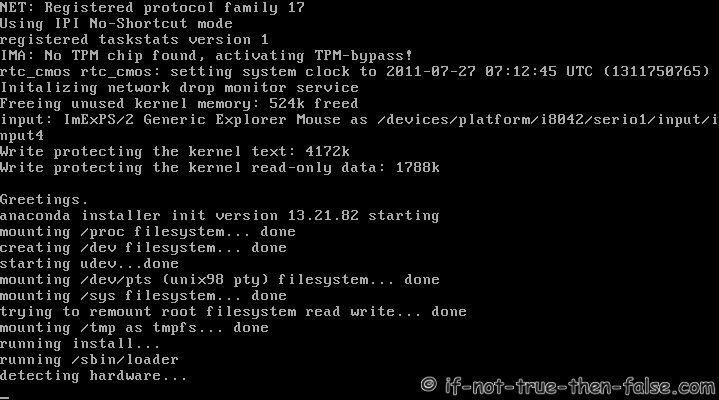
3.3 Disc Test (You can skip this or select media test, if you want to test installation media before installation)

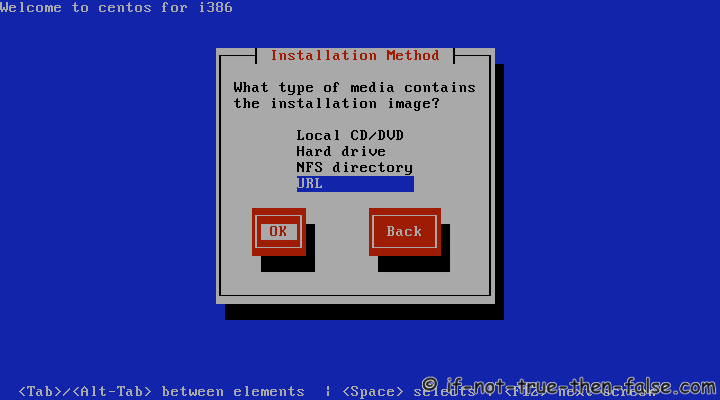
3.4 Select Installation Method -> URL
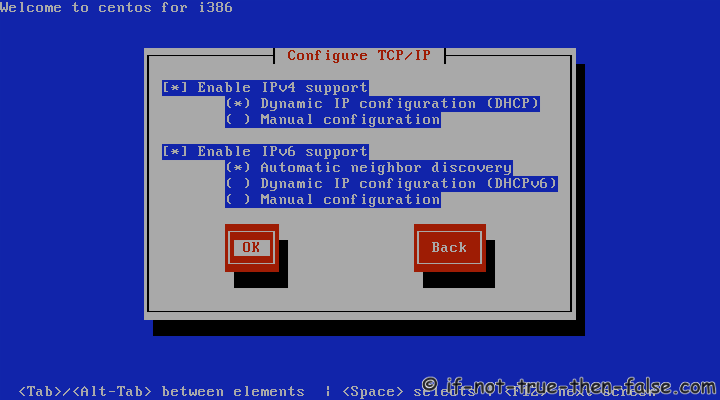
3.5 TCP/IP Configuration
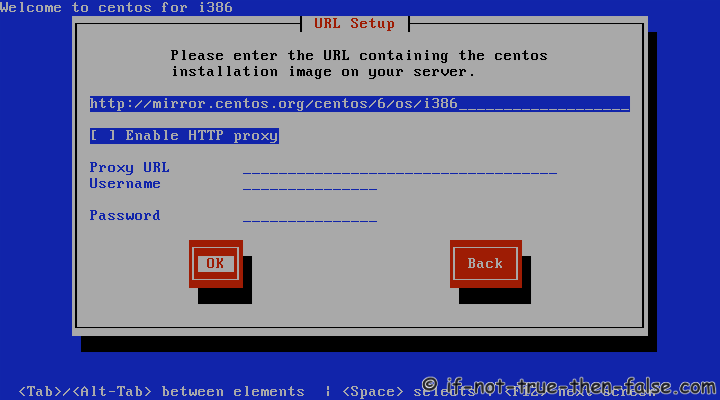
3.6 Setup Netinstall URL
CentOS 6.0 – i386 – 32-bithttp://mirror.centos.org/centos/6/os/i386/
CentOS 6.0 – x86_64 – 64-bit
http://mirror.centos.org/centos/6/os/x86_64/
3.7 Retrieving install image
This might take some time depending on your internet connection and server.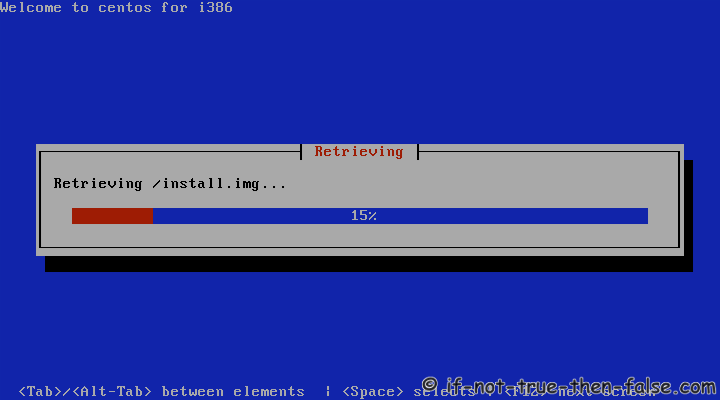
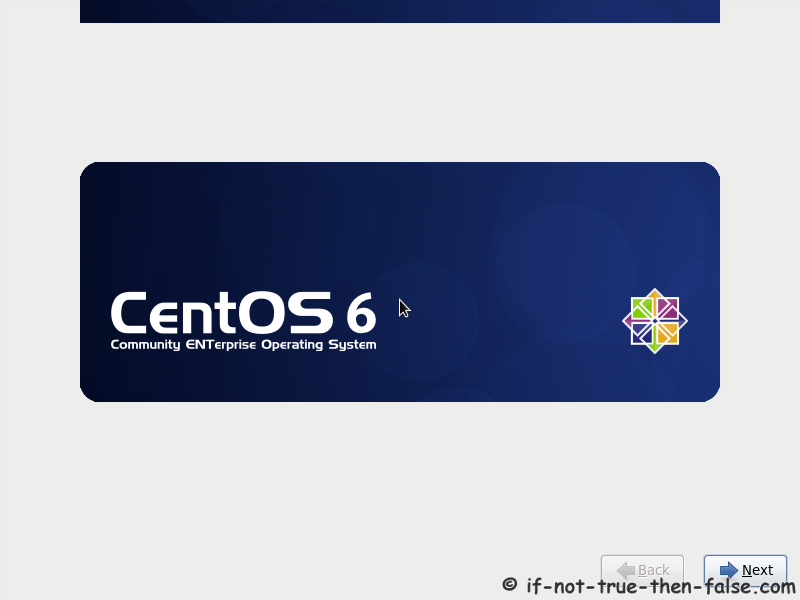
3.8 CentOS Graphical Installer Starts
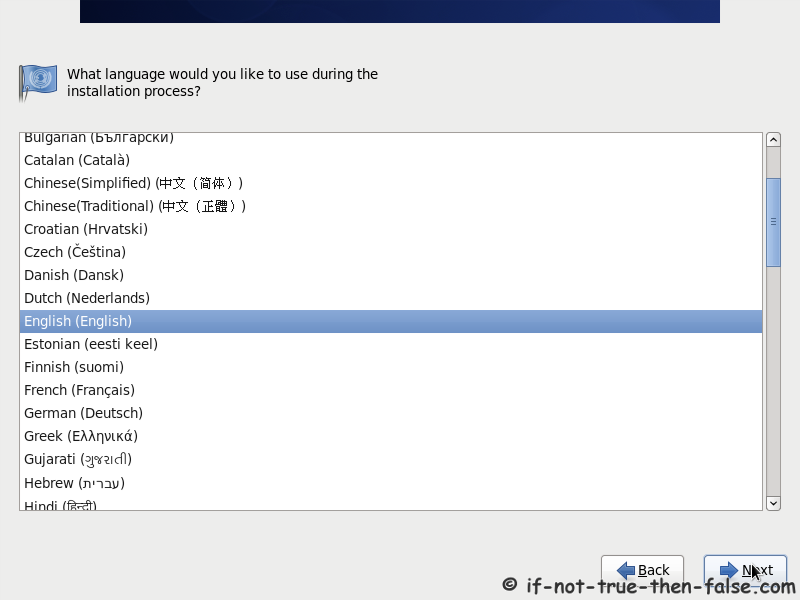
3.9 Select Your Language
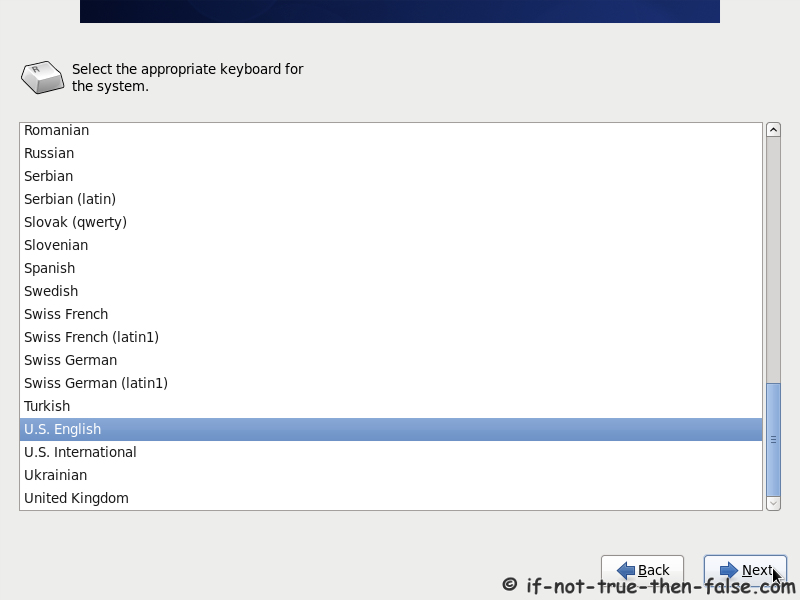
3.10 Select Keyboard Layout
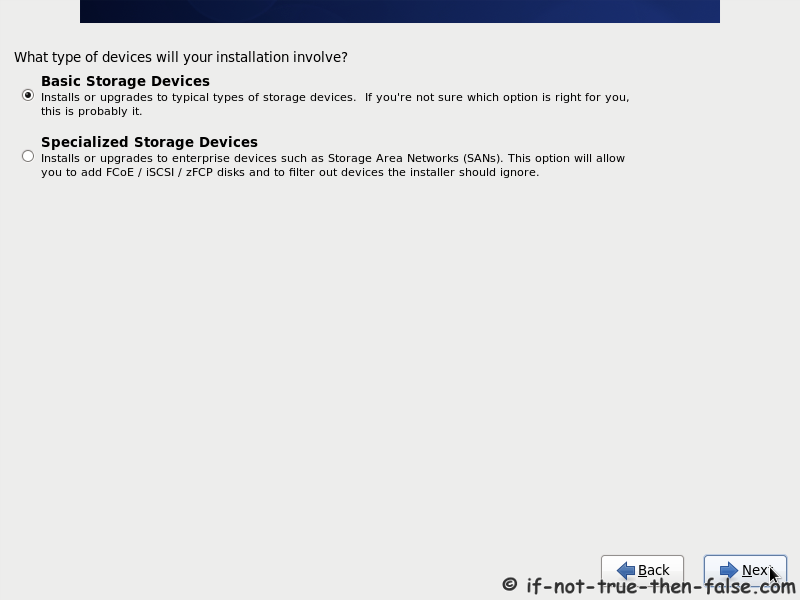
3.11 Select Storage Devices
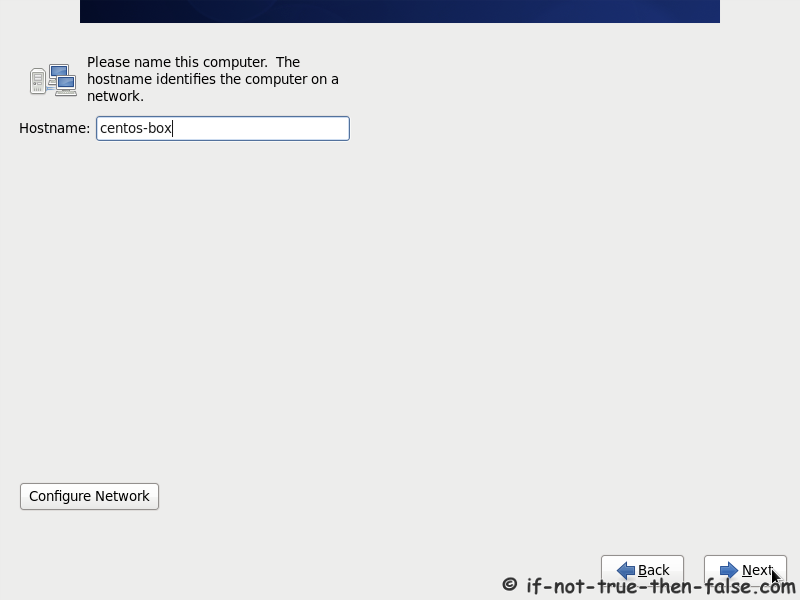
3.12 Set Hostname
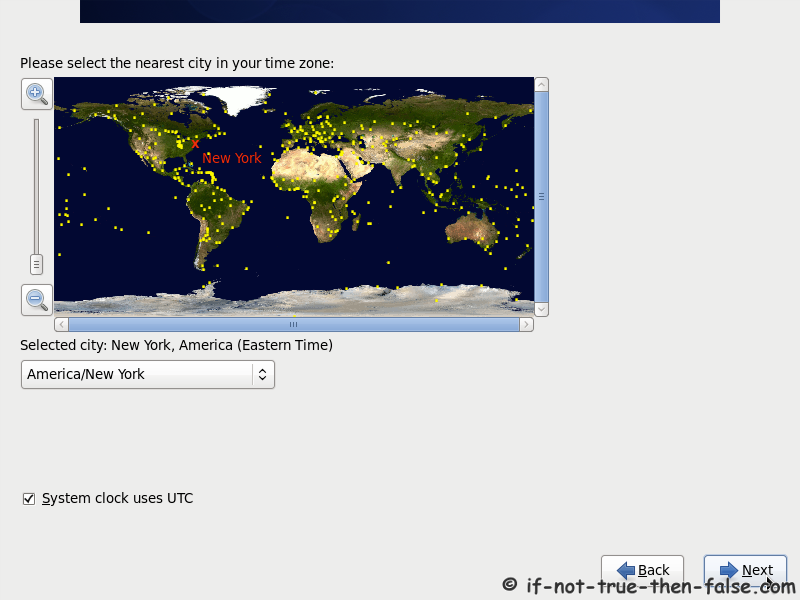
3.13 Select Timezone
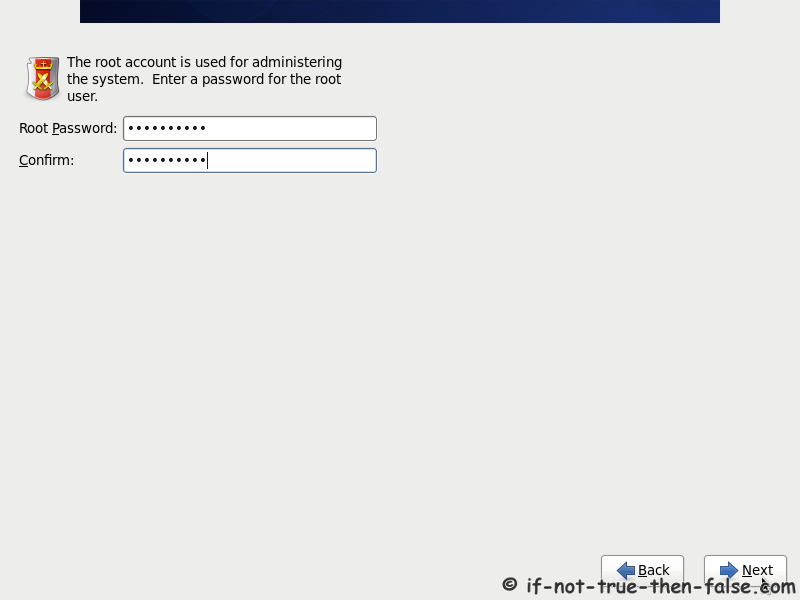
3.14 Set root user Password
3.15 Select Type of Installation
If custom partitioning is needed then select Create custom layout.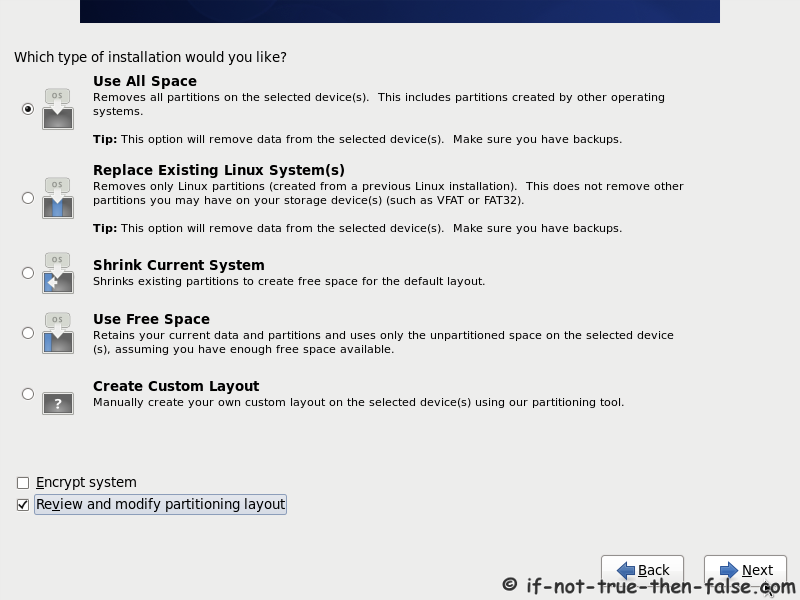
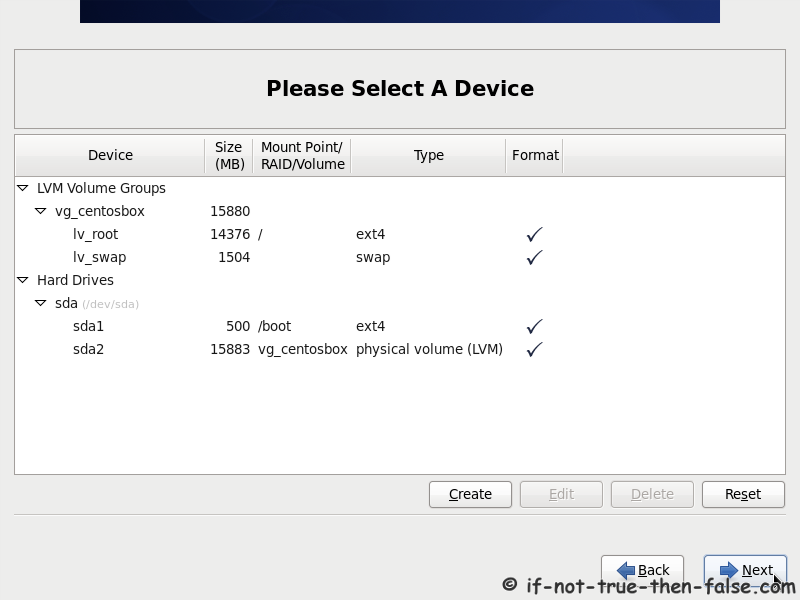
3.16 Check (and modify) Partition setup
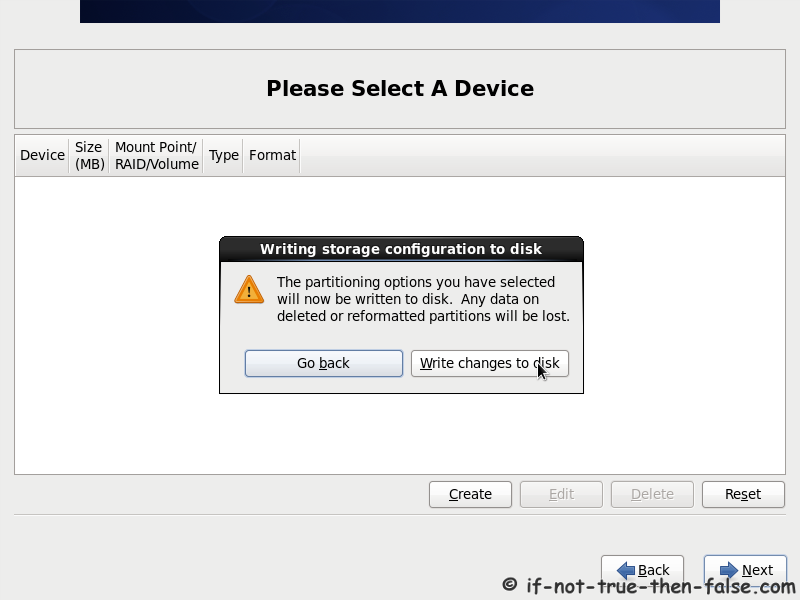
3.17 Write Changes to Disk
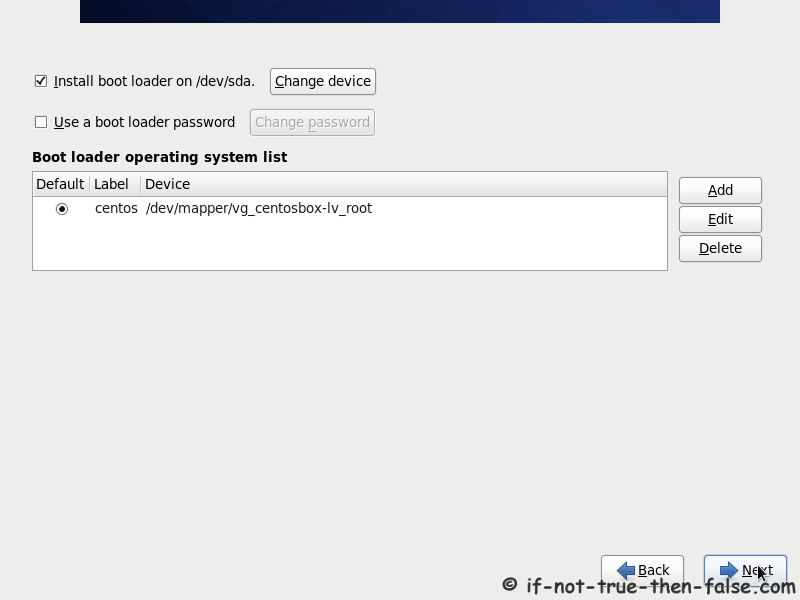
3.18 Configure Boot Loader
3.19 Customize Package Selection
I selected here Software Development Workstation, but you could choose example Server or Desktop and customize packages even more.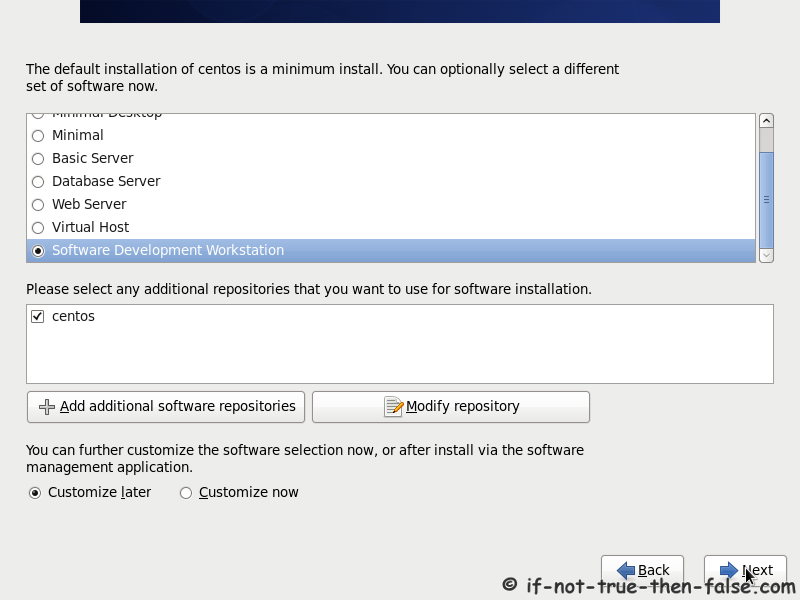
3.20 Starting Installation
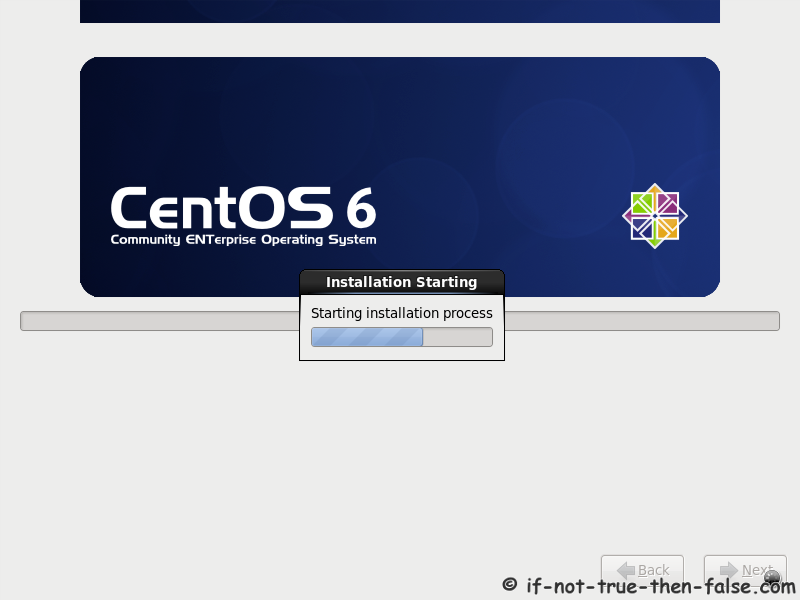
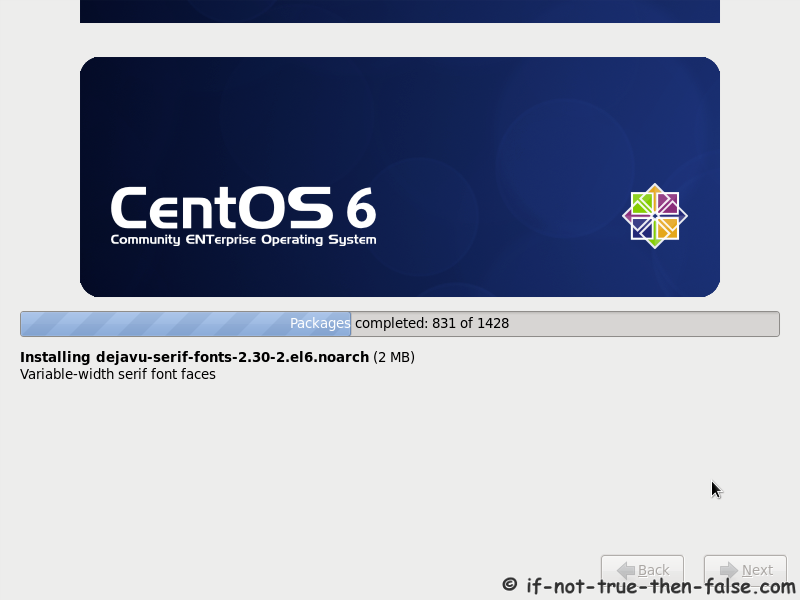
3.21 Installing CentOS 6.0 packages
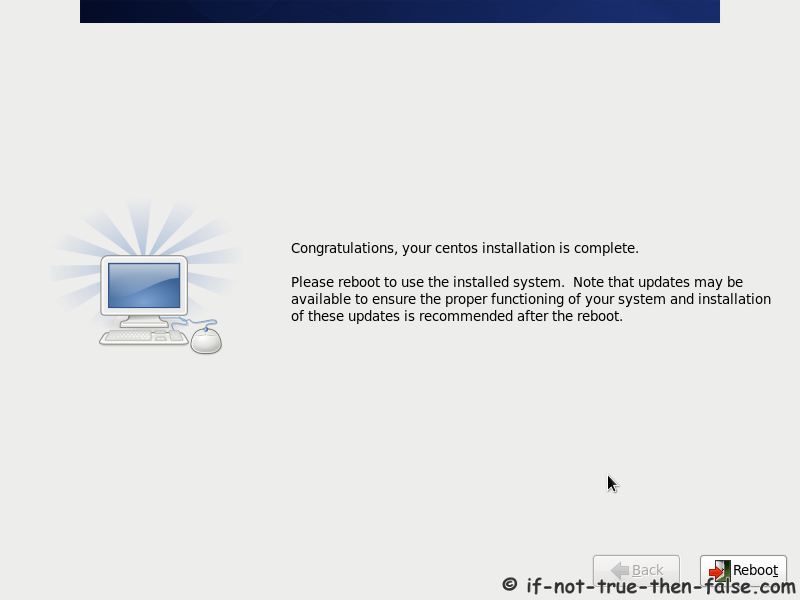
3.22 CentOS 6.0 Installation Completed
4. CentOS 6.0 Post Installation
4.1 Booting CentOS 6.0

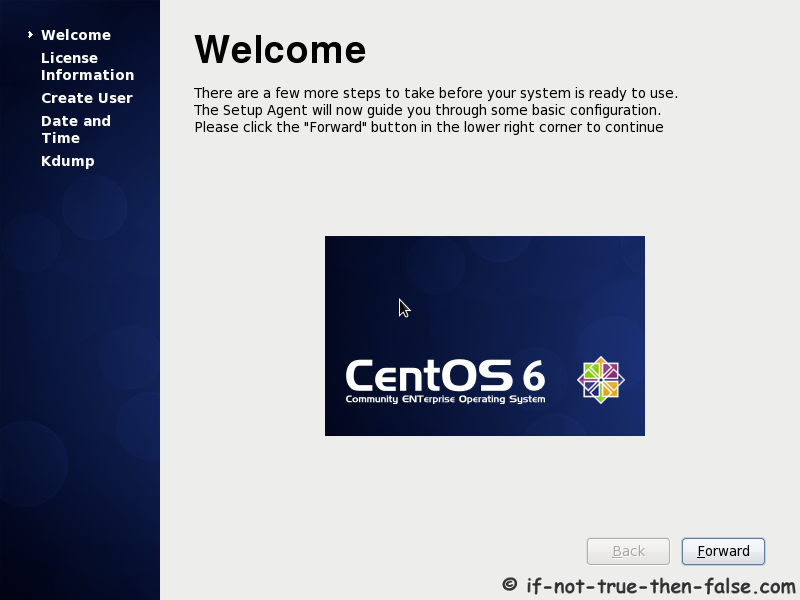
4.2 CentOS 6.0 Welcome Screen
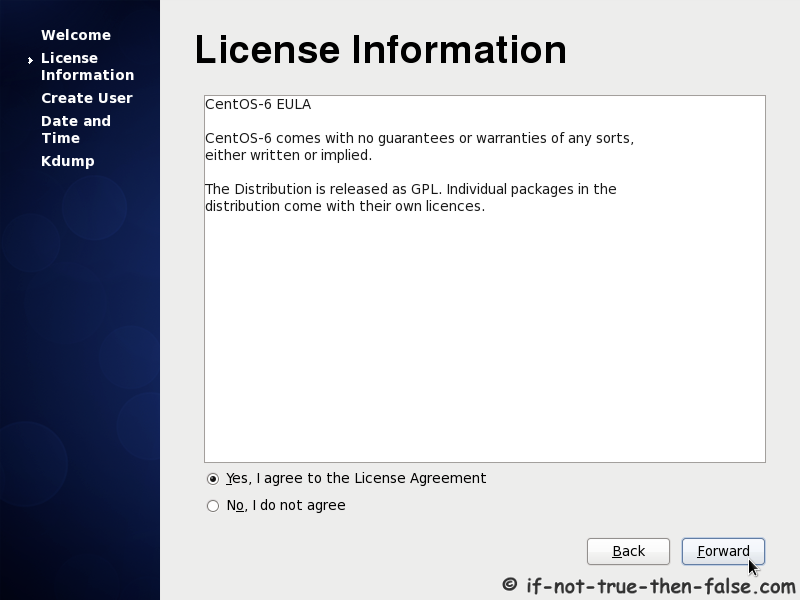
4.3 Accept CentOS License Agreement
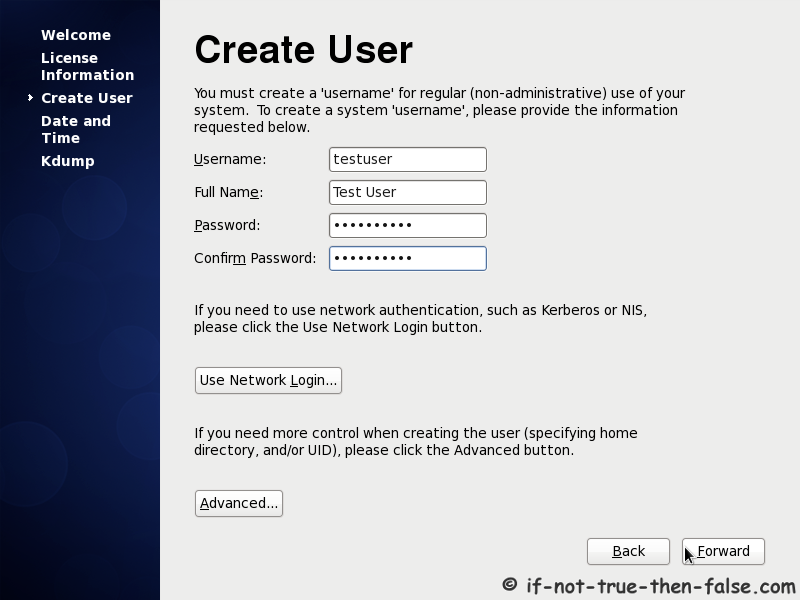
4.4 Create User
4.5 Set Date and Time
NTP is good choise.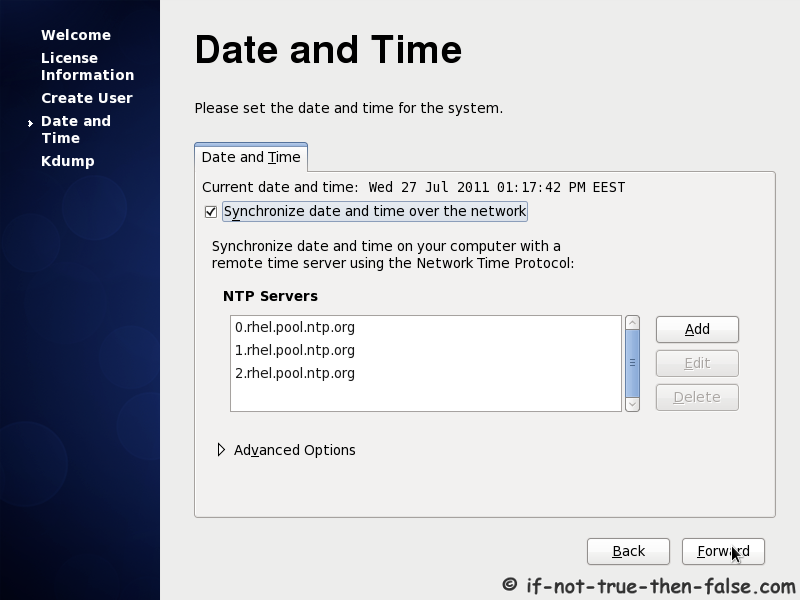
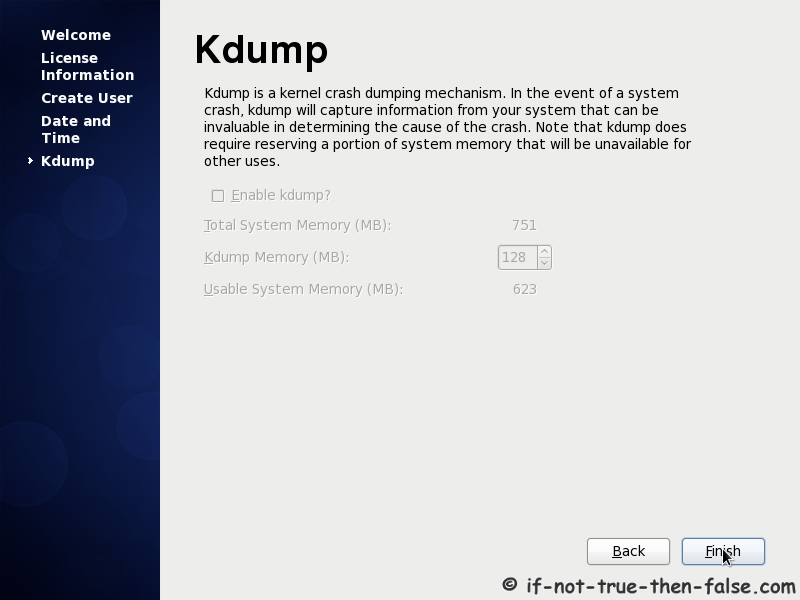
4.6 Setup Kdump
5. Use Your CentOS 6
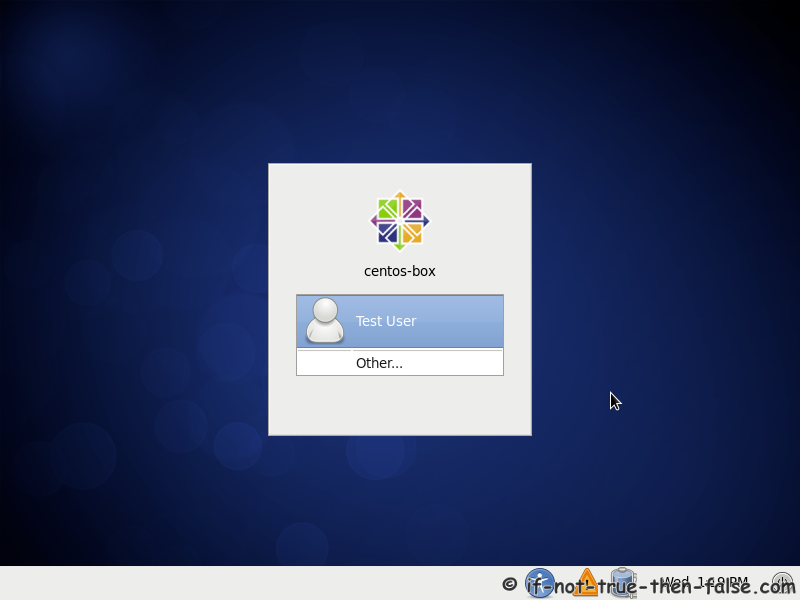
5.1 Log In
5.2 CentOS 6.0 Desktop


No comments:
Post a Comment