Pages

Tuesday, July 17, 2012

How to install RKhunter on Linux server


RKhunter

A rootkit is a stealthy type of malicious software (malware) designed to hide the existence of certain processes or programs from normal methods of detection and enables continued privileged access to a computer. The term rootkit is a concatenation of “root” (the traditional name of the privileged account on Unix operating systems) and the word “kit” (which refers to the software components that implement the tool). The term “rootkit” has negative connotations through its association with malware.
Rkhunter is a very useful tool that is used to check for trojans, rootkits, and other security problems.

How  to install RKhunter on Linux server

logint to shell
go to the path where you want to download the tar file.
cd /usr/local/src/dwonloads
 
wget http://space.dl.sourceforge.net/project/rkhunter/rkhunter/1.3.8/rkhunter-1.3.8.tar.gz
 
tar -zxvf rkhunter-1.3.8.tar.gz
 
cd rkhunter-1.3.8
 
./installer.sh –install
 
Once the installation is completed then you can scan the server using /usr/local/bin/rkhunter -c

How to install Chkrootkit on Linux Server


Chkrootkit :

Chkrootkit is a powerful tool to scan your Linux server for trojans. We’ll show you how to install it, scan your server and setup a daily automated scanning job that emails you the report.Chkrootkit is a powerful tool to scan your Linux server for trojans. We’ll show you how to install it, scan your server and setup a daily automated scanning job that emails you the report.

How to install Chkrootkit on Linux Server

Login to shell.
Download the chkrootkit file using below command.
wget ftp://ftp.pangeia.com.br/pub/seg/pac/chkrootkit.tar.gz
 
Untar the file using the below command
tar xvzf chkrootkit.tar.gz
Go to chkrootkit folder
cd chkrootkit-0.49
 
Compile chkrootkit using below command
make sense
Run chkrootkit
./chkrootkit

How to install the csf firewall on Linux Server:


CSF firewall commonly known as Configserver Security and Firewall has become one of the popular firewall not just because of its easy of use it also provides a cpanel interface and can be easily installed and tuned by any novice users. If you are running cpanel without firewall then CSF firewall is very much recommended, considering the security aspects of your server.
cd /usr/src
wget http://www.configserver.com/free/csf.tgz
tar -xzf csf.tgz
cd csf
sh install.sh

DSO (mod_php) vs. CGI vs. suPHP vs. FastCGI


This is one of the most common topics that I see customers will ask about. As highly important as PHP handlers are, they often the least understood. They seem complicated, but its not too hard to understand. You don’t have to know that exact science of how it all works, but one should learn the basics if you want to take your website seriously. Picking the right PHP handler for your website will give you the optimal speeds you want and maybe allow you to save some money by using a cheaper hosting package. So I invite you to take a few minutes and learn something new.

What are PHP handlers

In order to run a PHP site, the server must interpret the PHP code and generate a page when visitors access the website. It interprets the code based on which PHP library you are using, such as PHP 4 or PHP 5. A PHP handler is what actually loads the libraries so that they can be used for interpretation. PHP handlers determine how PHP is loaded on the server.
There are multiple different handlers that can be used for loading PHP: CGI, DSO, suPHP, & FastCGI. Each handler delivers the libraries through different files and implementations. Each file and implementation affects Apache’s performance, because it determines how Apache serves PHP.
It is essential for your server’s performance that you select the handler that fits your situation. Selecting the right handler is just as important as the PHP version itself. One handler is not necessarily always better than another; it depends on your unique setup.
  • Note: You may assign different PHP handlers to different versions of PHP. For example, version 5 may be handled by CGI while PHP 4 is handled by DSO.

How to change the handler

Changing the handler on cPanel is very easy to do and only takes seconds. Log into WHM and navigate to: Main >> Service Configuration >> Configure PHP and SuExec
You simply select your PHP handler choice from the drop-down menu. Then hit “Save New Configuration”.
  • Note: If you do not see your desired choice in the drop-down menu, it may need to be compiled on the server first. Run an “Easy Apache” to compile it.

List of PHP handlers

DSO (mod_php)

DSO is also known as mod_php. DSO stands for: Dynamic Shared Object. This is an older configuration but is generally considered the fastest handler. It runs PHP as an Apache module. This means that PHP scripts will run as the Apache user, which is the user: ‘nobody’.
DSO has two drawbacks. First, all files created by a PHP script will have the ownership of ‘nobody’. They will not be readable from the web. Websites that need to upload files through PHP will run into file permission issues. This is common with WordPress users that upload files through the WordPress interface or utilize the auto-update feature. These will fail with DSO.
The second drawback is a security issue. Created files will have the ‘nobody’ ownership. If a hacker finds an exploit in your PHP script, they could implement a file that has the same privileges as important system files that are also owned by ‘nobody’. This will give them the ability to modify files outside of that user’s account. This is really bad for anyone who does reselling or simply is hosting other person’s sites. You would not one user to be able to affect another user. However, if there is only one account on the server (or if all the accounts are yours), then DSO may be right for you. The speeds benefits of DSO are unquestionable.
The preventative fix the hack issue is to always keep your site’s software up to date. Check with your PHP script’s developer to keep up on the new releases. If you are the only one being hosted on the server, this is easy to do as it’s part of your webmaster duties already. However, if you’re reselling, it would be unreasonable to expect all your user’s to keep their software up to date. They simply may not be as diligent as you.
DSO’s low CPU usage typically amounts in higher speeds and load times over most other handlers. It is also the default setting on most servers.

CGI

CGI stands for: Common Gateway Interface. The CGI handler will run PHP as a CGI module as opposed to an Apache module. CGI still runs PHP processes as the Apache ‘nobody’ user. However, if you have suEXEC enabled, it will allow you to see the user that made the request.
The CGI method is intended as a fallback handler for when DSO is not available. According to cPanel’s own documentation, this method is neither fast nor secure, regardless of whether or not suEXEC is enabled.

suPHP

suPHP stands for Single user PHP. suPHP also runs PHP as a CGI module instead of an Apache module. It differs from CGI in that PHP scripts that are called from the web will run under the user that owns them, as opposed to ‘nobody’. suPHP is typically the default handler and is recommended by cPanel for serving PHP because you will be able to see which user owns the account that is running the PHP script.
suPHP is beneficial in that if you are using a file upload tool on your site (such as an automatic updater or theme/plug-in installer for WordPress), the files will already have the right ownership & permissions. Uploading and other WordPress functions will not work without suPHP or FastCGI.
suPHP also offers a security advantage that any php script that is not owned by the particular user (such as another account or root) will not be executable. Also, files that have permissions set to world writeable will likewise be non-executable. This means that if one account is compromised, the malicious scripts will not be able to infect other accounts.
The drawback is that suPHP generally runs a much higher CPU load. In addition, you CANNOT use an Opcode Cache (such as Xcache or APC) with suPHP. It is strongly recommend that you install a caching plug-in to supplement this ned. If you find that your server is still continually struggling with CPU usage, you will want to consider switching to DSO or FastCGI.
*If you DO switch to either suPHP or FastCGI, you will need to update the file permissions and ownership. See my other article for automatic fixperms on cPanel servers: http://boomshadow.net/tech/fixes/fixperms-script/

FastCGI

FastCGI (aka: mod_fcgid or FCGI) is a high performance variation of CGI. It has the security/ownership benefits of suPHP in that PHP scripts will run as the actual cPanel user as opposed to ‘nobody’. The difference with FastCGI is that it can drastically save on CPU performance and give speeds close to that of DSO. It can also be used with an opcode cacher like eAccelerator or APC, which can help further speed the loading of pages.
The drawback is FastCGI has a high memory usage. This is because rather than creating the PHP process each time it is called, like suPHP, it keeps a persistent session open in the background. This is what lets it work with an opcode caching software.
If you like the security/ownership benefits of suPHP and you can afford a major increase in memory usage (meaning you already have a low average memory usage), you may wish to consider using FastCGI.

Comparison Graph

DSOCGISUPHPFASTCGI
Low CPU usage
Low Memory consumption
Runs PHP as site owner instead of Apache
✔ 
only w/ suEXEC
Good security

Special Note for WordPress Users

If you are using WordPress to run your site, please consider the following:
  • Functions that require uploading files to the server (such as Auto-updates or Plug-in/Theme installation) will NOT work unless PHP is loaded as a CGI module. This means they will ONLY work with suPHP or FastCGI. This will ensure they are uploaded with the correct ownership & permissions.
  • CMS platforms such as WordPress will notoriously run a high CPU load. You will want to install a caching plug-in such as WP Super Cache, especially if you are running suPHP. If you find that your server is still continually struggling with CPU usage, you may want to consider switching to DSO or FastCGI.

Custom php.ini not working on SuExec Enabled Server


How to enable Custom php.ini  on SuExec Enabled Server ?
Ans :
Normally, on SuExec Enabled Server, you can create php.ini in your account to customize php settings for your account. If php.ini is created under an account with customize php setting and it doesn’t work for you, then this is because override is disabled in /opt/suphp/etc/suphp.conf
Quote:
[phprc_paths]
;Uncommenting these will force all requests to that handler to use the php.ini
;in the specified directory regardless of suPHP_ConfigPath settings.
application/x-httpd-php=/usr/local/lib/
application/x-httpd-php4=/usr/local/php4/lib/
application/x-httpd-php5=/usr/local/lib/
This forces suphp to use the php.ini from /usr/local/lib/
You can comment these lines and then restart Apache to resolve the issue.
Quote:


[phprc_paths]
;Uncommenting these will force all requests to that handler to use the php.ini
;in the specified directory regardless of suPHP_ConfigPath settings.
;application/x-httpd-php=/usr/local/lib/
;application/x-httpd-php4=/usr/local/php4/lib/
;application/x-httpd-php5=/usr/local/lib/

Done

File permissions


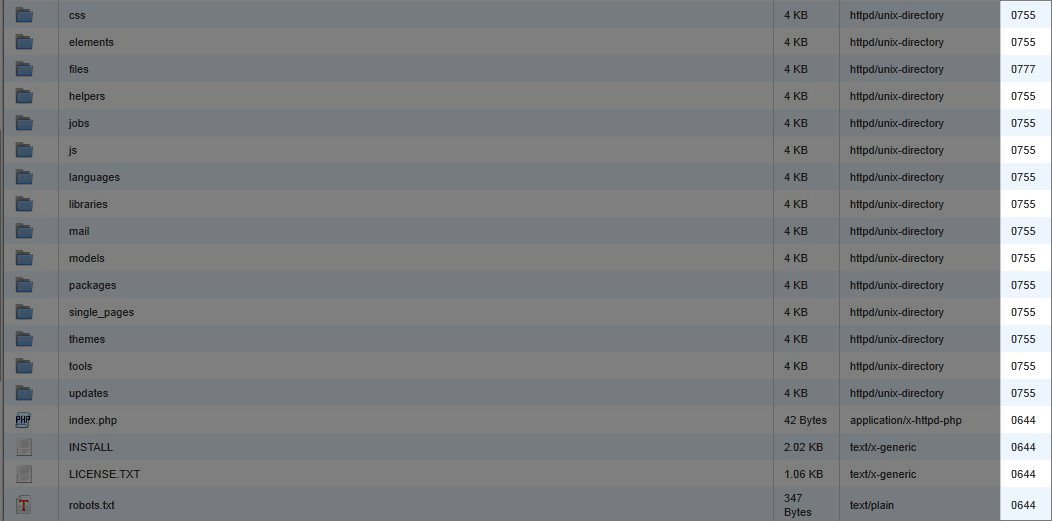
File permissions can be viewed and changed through either the cPanel File Manager or most FTP programs. We'll walk you through viewing and changing your permissions through the cPanel File Manger here.
File permissions in the cPanel FIle manager will be represented by numbers instead of letters.  The numbers are as follows:
7 = read, write, execute
6 = read, write
5 = read, execute
4 = read only
3 = write, execute
2 = write only
1 = execute only
0 = Access Denied
Let's look at an example below:
cpanel-view-file-permissions
In the image above you can see the permissions for each file listed on the right side of the screen. Probably the most important thing to keep in mind is that certain file types and folders should be set to particular permissons. Below are some examples:
public_html - 750
Folders - 755
CGI and Perl scripts - 755
.html .php and other Document Types - 644

Monday, July 16, 2012

ISO/OSI layers, what all are heppening in each of the layers.


ISO/OSI Layers:

Think of the seven layers as the assembly line in the computer. At each layer, certain things happen to the data that prepare it for the next layer. The seven layers, which separate into two sets, are:


Layer 1—Physical

Layer 2—Data link

Layer 3—Network

Layer 4—Transport

Layer 5—Session

Layer 6—Presentation

Layer 7—Application


Application Set


Layer 7: Application - This is the layer that actually interacts with the operating system or application whenever the user chooses to transfer files, read messages or perform other network-related activities.

Layer 6: Presentation - Layer 6 takes the data provided by the Application layer and converts it into a standard format that the other layers can understand.

Layer 5: Session - Layer 5 establishes, maintains and ends communication with the receiving device.

Transport Set

Layer 4: Transport - This layer maintains flow control of data and provides for error checking and recovery of data between the devices. Flow control means that the Transport layer looks to see if data is coming from more than one application and integrates each application's data into a single stream for the physical network.

Layer 3: Network - The way that the data will be sent to the recipient device is determined in this layer. Logical protocols, routing and addressing are handled here.

Layer 2: Data - In this layer, the appropriate physical protocol is assigned to the data. Also, the type of network and the packet sequencing is defined.

Layer 1: Physical - This is the level of the actual hardware. It defines the physical characteristics of the network such as connections, voltage levels and timing.

Redirect Non-Secure request to Secure


You can use following code in .htaccess file under the document root of the URL to redirect http requests to https.

RewriteCond %{SERVER_PORT} 80
RewriteCond %{HTTP_HOST} ^domain.com$
RewriteRule ^.*$ “https://domain.com” [R=301,L]


RewriteCond %{SERVER_PORT} 80
RewriteCond %{HTTP_HOST} ^www.domain.com$
RewriteRule ^.*$ “https://domain.com” [R=301,L]

Reset the MySQL root password


To reset MySql root password on Ubuntu, you can use following commands.

1. Stop MySql Service on server

sudo /etc/init.d/mysql stop
2. Now configure mysqld

sudo mysqld –skip-grant-tables &
3. Login into MySql as root

mysql -u root mysql
4. Reset old password with new

UPDATE user SET Password=PASSWORD(‘NewPassword’) WHERE User=’root’; FLUSH PRIVILEGES; exit;
Note :: Replace NewPassword with required mysql root password.

Adding IP addresses through shell


Adding IP addresses through shell if the server has Two Ethernet Cards and not able to do it through WHM

#cd /etc/sysconfig/network-scripts/
#cp ifcfg-eth1 ifcfg-eth1:1
#vi ifcfg-eth1:1
Now, you can add the IP
Change device to DEVICE=eth1 and IP address

ifup ifcfg-eth1:1
Setting up 10_Mbps using mii-tools command

mii-tool -F 10baseT-FD
vi /etc/sysconfig/network-scripts/ifcfg-eth0
ETHTOOL_OPTS=”autoneg off speed 10 duplex full”
If you are not able to add them through WHM, then you need to verify the file /etc/wwwacct.conf and check ETHDEV and mention the ethernet drive. The reason behind mentioning ethernet drive is to set a IP as default for setting up for new accounts.

redirects from www and to www


How to setup redirects for domain.com to www.domain.com and vice versa ?

Create a .htaccess file under the root directory and add the code below

Redirect www.domain.com to domain.com

Options +FollowSymLinks
RewriteEngine On
RewriteCond %{HTTP_HOST} ^www.domain.com$ [NC]
RewriteRule ^(.*)$ http://domain.com/$1 [R=301,L]
Redirect domain.com to www.domain.com

Options +FollowSymLinks
RewriteEngine On
RewriteCond %{HTTP_HOST} ^domain.com$ [NC]
RewriteRule ^(.*)$ http://domain.com/$1 [R=301,L]
Save the file and exit and give it a try once

How to install imagick for PHP


The imagick.so PHP module can’t currently be installed via PECL, due to it’s inability to write to /var/tmp. To get around that, you can install it manual:

# yum install ImageM* netpbm gd gd-* libjpeg libexif gcc coreutils make
# cd /usr/local/src
# wget http://pecl.php.net/get/imagick
# tar zxvf ./imagick-3.1.0RC1.tgz
# cd imagick-3.1.0RC1
# phpize
# ./configure
# make
# make test
# make install

This will compile imagick.so, and move it to your extensions directory specified in php.ini. Now you’ll need to add extension for imagick to php.ini:

extension=imagick.so

and restart apache with following command:

#service httpd restart

Script to change all file and directory permission under a location


To Change permissions of all files and directories inside a directory using a single command


find . -type d -exec chmod 755 {} \;

find . -type f -exec chmod 644 {} \; 

Outlook mail configuration

1. Click on the tools menu then accounts
2. Click Add on the right side at the top and select mail
3. Display Name: Your Name
4. Click Next
5. E-mail Address: address@yourdomain.com
6. Click Next
7. My incoming mail server is a POP3 server.
8. Incoming mail server (POP3): yourdomain.com
9. Outgoing mail server (SMTP): yourdomain.com
10. Click Next
11. Acount Name: address@yourdomain.com; If you are setting up for your Main Account you would use your hosting account user
name.
12. Password: This will be the password you set for the email address when you set it up in your hosting account control pan
el. If you are setting up for your Main Account, this will be your hosting account password.
13. Check Remember password if you don’t want to enter your password each time.
14. DO NOT CHECK \”Log on using Secure Password Authentication (SPA)\”
15. Click Next then Finish
16. Click on the account you just created then click Properties
17. Click the Servers tab
18. CHECK \”My server requires authentication\” at the bottom
19. Click the Advanced tab
20. Under Server Port Numbers Incoming server (POP3): 110
21. Under Server Port Numbers Outgoing server (SMTP): 25; If your ISP blocks access to port 25 you can use port 26.
22. Click OK to close that window.
23. Click Close to close that window.

How to Create a MySQL Backup


How to Create a MySQL Backup of a big Database:
===================================

It’s not possible to create a backup from a MySQL database with phpMyAdmin which is bigger than 2 MB. If you are running MySQL on a Linux based system, try this:

Login to your web server with Putty (Windows) or any other SSH client

Type in your console:

#mysqldump -uYOURUSERNAME -pYOURPASSWORD DATABASE-NAME > dump.sql

(Note: there is no space between “-u”/”-p” and the MySQL username/password.)
You can create simply all database at once by using –all-databases insted of database_name

Copy the newly created backup (dump.sql) to a safe place via SCP or FTP

Friday, July 13, 2012

How to install Linux Malware Detect (LMD)


How to install Linux Malware Detect (LMD)


Maldet also known as Linux Malware Detect virus scanner for Linux.
Go to the below path
cd /usr/local/src/
Download the tar file using the below link:
wget http://www.rfxn.com/downloads/maldetect-current.tar.gz
Extract the file using the below command
tar -xzf maldetect-current.tar.gz
go to the maldet folder
cd maldetect-*
Now, run the below command to install maldet.
sh ./install.sh or sudo sh ./install.sh
It will give below output
Linux Malware Detect v1.3.4
(C) 1999-2010, R-fx Networks <proj@r-fx.org>
(C) 2010, Ryan MacDonald <ryan@r-fx.org>
inotifywait (C) 2007, Rohan McGovern <rohan@mcgovern.id.au>
This program may be freely redistributed under the terms of the GNU GPL
installation completed to /usr/local/maldetect
config file: /usr/local/maldetect/conf.maldet
exec file: /usr/local/maldetect/maldet
exec link: /usr/local/sbin/maldet
cron.daily: /etc/cron.daily/maldet
maldet(32517): {sigup} performing signature update check…
maldet(32517): {sigup} local signature set is version 2010051510029
maldet(32517): {sigup} latest signature set already installed

To update the maldet use the below commands.
maldet –update-ver
maldet –update[/i]
To scan the files.
maldet -a /home/username/
It will scan all the files and provide you the output.

To scan all user uder public_html paths under /home*/ this can be done with:
root@server[~]# maldet –scan-all /home?/?/public_html
To scan the same path but the content that has been created/modified in the last 5 days:
root@server[~]# maldet –scan-recent /home?/?/public_html 5
To scan but forget to turn on the quarantine option, you could quarantine all malware results from a previous scan with:
root@server[~]# maldet –quarantine SCANID
If you wanted to attempt a clean on all malware results from a previous scan that did not have the feature enabled, you would do with.
root@server[~]# maldet –clean SCANID
If you had a file that was quarantined from a false positive or that you simply want to restore (i.e: you manually cleaned it), you can use the following:
root@server[~]# maldet –restore config.php.2384
root@server[~]# maldet –restore /usr/local/maldetect/quarantine/config.php.2384

How to install and configure maldet scan


wget http://www.rfxn.com/downloads/maldetect-current.tar.gz
tar -xzvf maldetect-current.tar.gz
cd maldetect-*
sh install.sh
================================
[     maldet --scan-all  /home/*/public_html/            ---> To scan      ]
[     maldet --report 122111-1532.827                -----> To see the report      ]
[     maldet -q 122111-1532.8272                         ----> To remove the Infected files       ]
maldet(7488): {scan} quarantine is disabled! set quar_hits=1 in conf.maldet or to quarantine results run: maldet -q 125211-1258.7488

INFECTED FILES LIST in
cd /usr/local/maldetect/sess/
There is a file that start with   session.

To view Plesk admin password


cat /etc/psa/.psa.shadow
For Plesk 10.2 onwards
[  /usr/local/psa/bin/admin --show-password  ]

Command to Find plesk version


[root@myserver] #  rpm -q psa
psa-9.3.0-cos5.build93091230.06?
[root@myserver]#  cat /usr/local/psa/version
9.3.0 CentOS 5 93091230.06
Open Plesk CP in the browser, the version will be printed in the title bar.